How using a webcast chat can help you stay connected

These days, more and more employees are choosing remote jobs. To keep up with the trend, a webcast chat is your best solution to keep in touch.

Live streaming and video streaming platforms are booming. With that said, webinars are favored for businesses and workshops for improving skills.

Tools like moderated chat in RumbleTalk are enabling employees and customers worldwide to stay connected. Also, they are given a chance to learn from the business leaders and those within the organization.

Why a webcast chat?

A webcast chat within a webinar provides two-way communication. Usually, businesses hold them to educate employees, customers, or prospective customers, to hone their skills and improve relationships.

What do you need to run a webinar?

Firstly, you need a quiet space. Secondly, you’d need a camera to record the virtual event. Next, you need a webcast chat. This is where RumbleTalk can help. It includes a moderated chat that you can use throughout the event.

How can you get your own webcast chat?

To get your own webcast chat, you can create an account on RumbleTalk.

Follow the steps below.
monetize
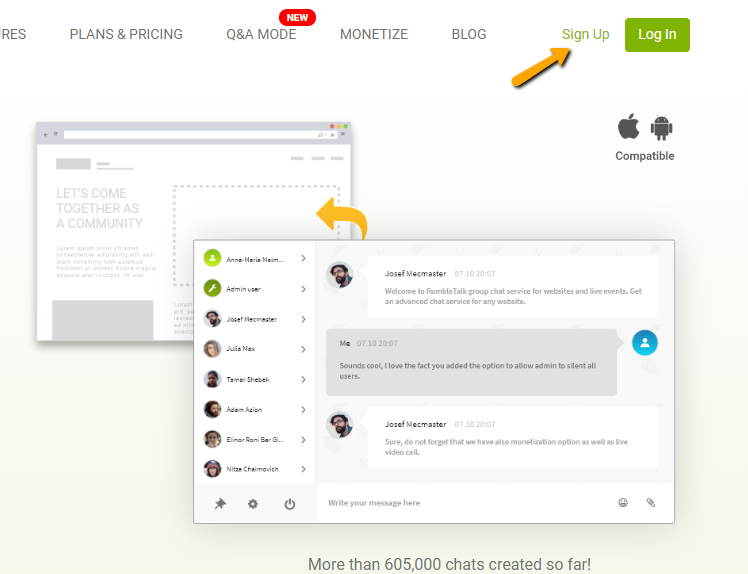
  • First, create your RumbleTalk account.
  • Next, choose moderated chat as your preferred chat type.
  • Agree to the terms and conditions.
  • Finally, you have your own account. If you want to change your chat settings, you can do so on your admin panel.
  • Lastly, share your chat link or embed it on your website.

By sharing your link to your groups, you make sure you involve everyone. Once you’ve set up your chat, you can now pre-approve messages before they get sent out. So, choose questions to be answered in the webinar.

Take full control of the community conversation

If a question does not fit the chat standards, you can immediately delete it. Therefore, no one will feel negative or threatened.

If a user is persistent in sending those kinds of messages, there are different chat moderation features that you can use. They are as follows:

  1. Ban IP addresses
  2. Disconnect users from the chat
  3. Ignore messages from a particular user
  4. Block and filter words

You can see all of these features on the chat and admin panel. So, be sure to discover that first!

How to ask questions during a live webcast?

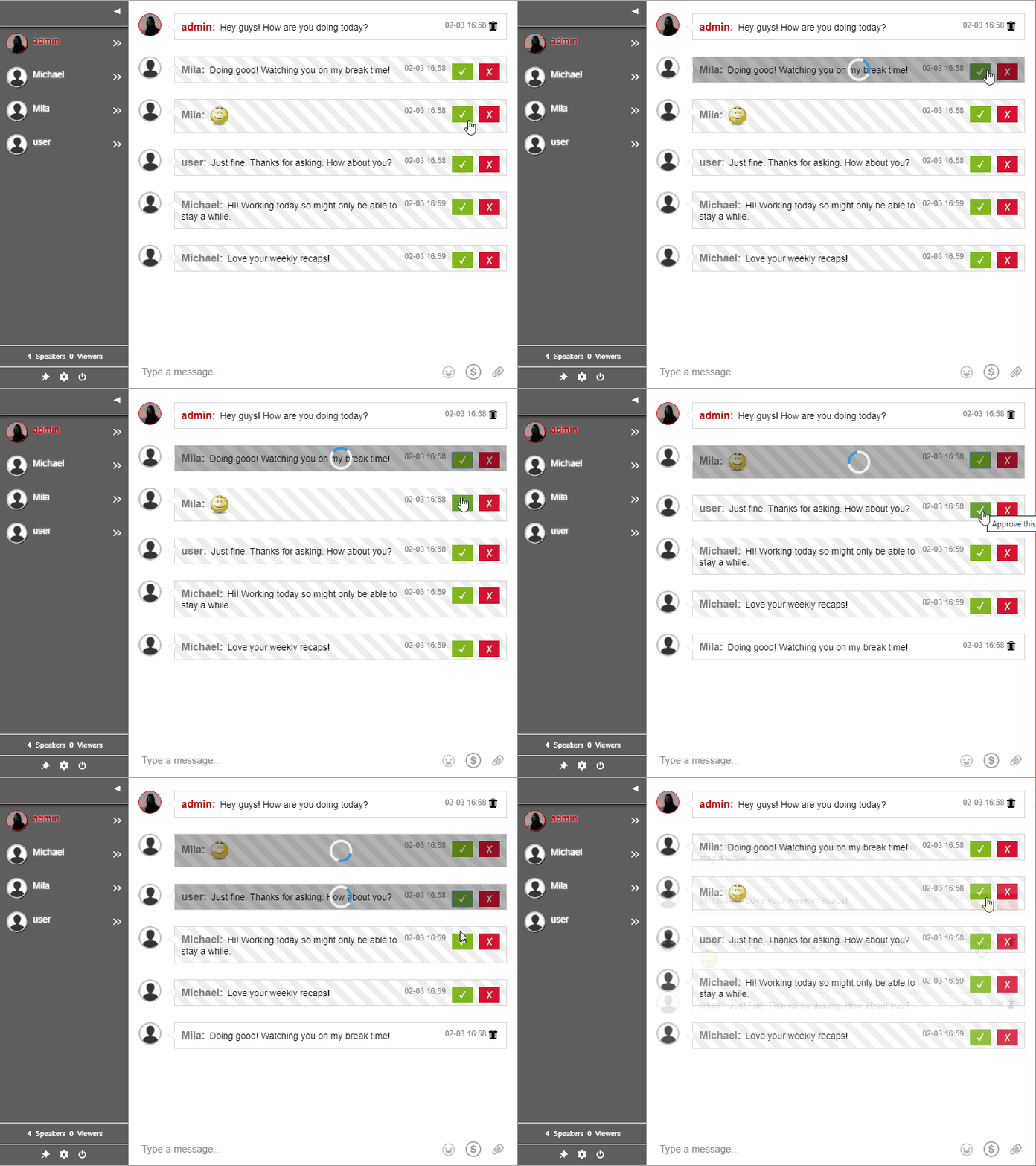
When you are using moderated chat as your chat type, the admins need to approve questions before they get sent out. Here’s how admins see the messages of the non-admin users.
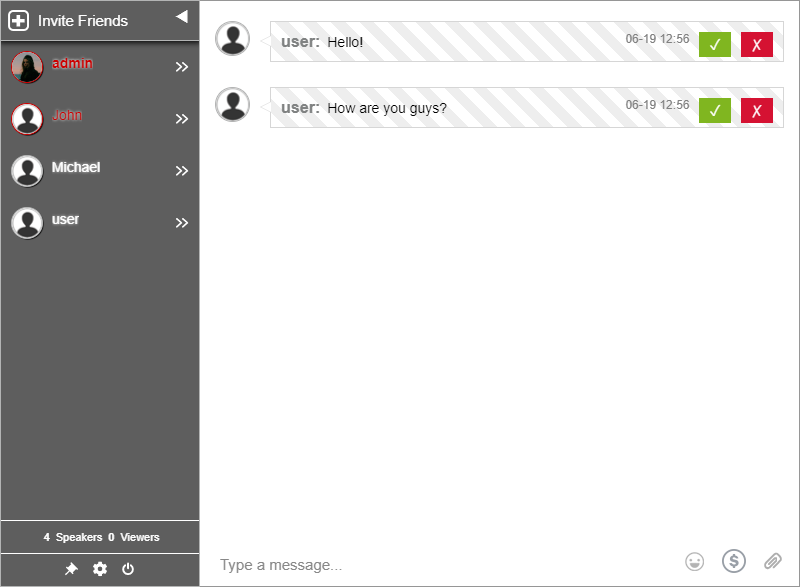
q&a live session
admin view

As for the customers and employees, they can ask their questions normally. However, they will not see other users’ questions if they’re not approved. For non-admin users, only approved questions will be shown. Here’s an example of a non-admin user’s view.
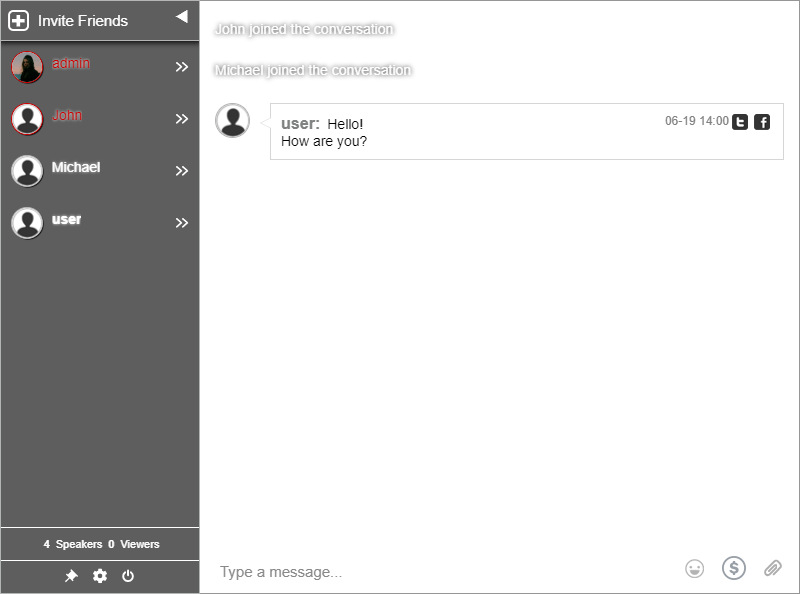
digital event
user view

Even if non-admin users cannot see the other users’ questions, they can still send their own. If their question is chosen by the admins, it will appear in the chat room.
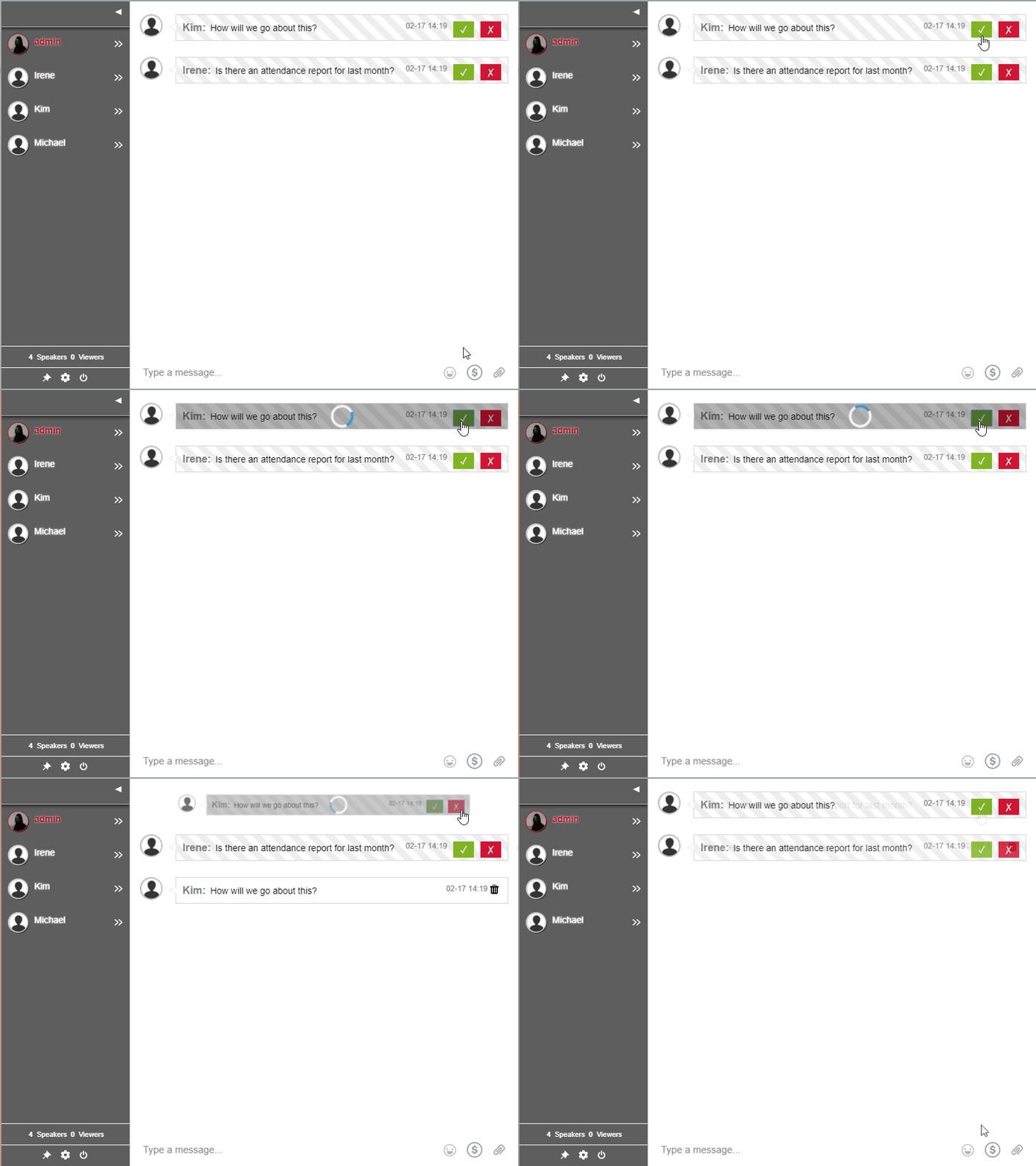
rumbletalk chat

The moderated chat type is great as a webcast chat since the admins can keep an eye on the chat discussion. Moreover, admins are given different chat moderation tools so they can effectively moderate the chat.

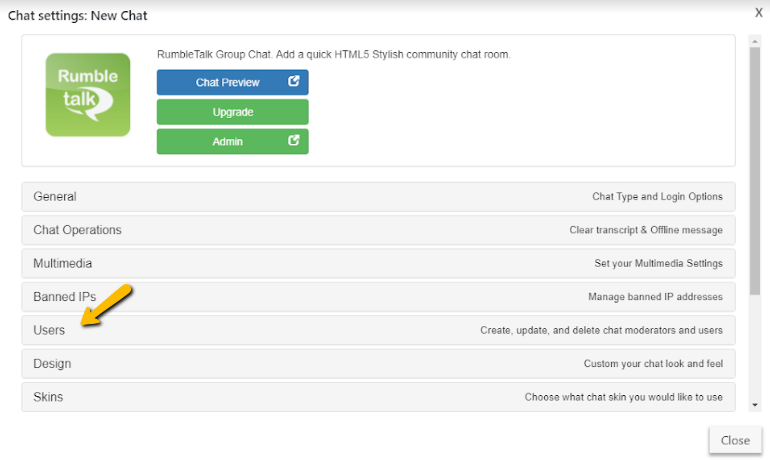
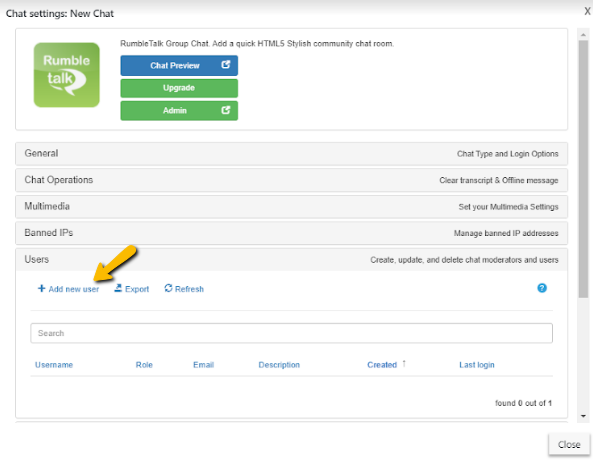
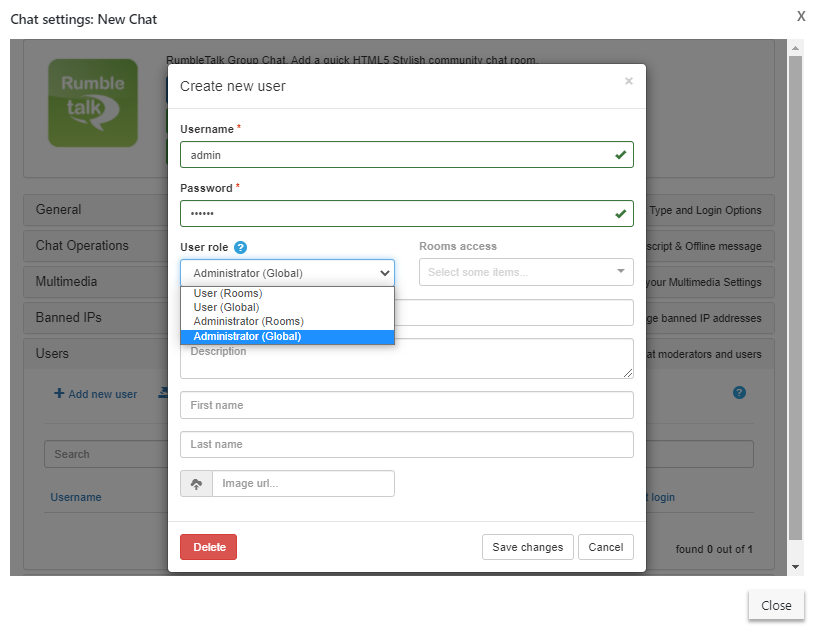
Adding admins to your chat is simple. Click “Users” on your admin panel. Type in the username and choose administrative rights. Add admins as your webinar needs.

Effectively collaborate with your customers and peers

Hosting a webinar is stressful, especially if it’s your first time. Therefore, it’s a great idea to be prepared. With a webcast chat, you’re sure to have the perfect medium for conversation.

Another thing that chatters can take away is a copy of your webinar. For example, did you use slides or any document on your webcast? If yes, you can send that in the chat as an admin. This will let all users download the necessary material.
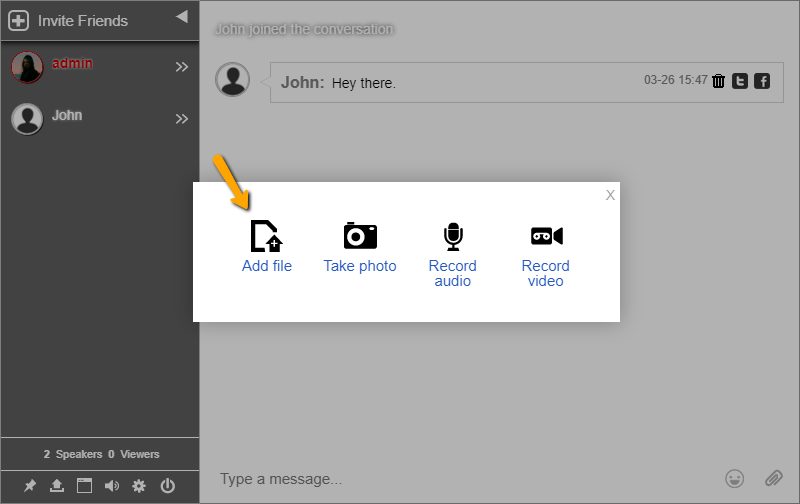
online chat tool

It’s a win-win situation for the company and its employees and customers. Need more seats for your webinar? You can also upgrade your account to premium or add seats manually.

After your webinar, don’t forget to follow up with everyone. You can also use the chat as a group chat and let your users send in their feedback. To change chat types, go to your admin panel. Then, choose group chat.

It’s as easy as that! You can do more if you check out your admin panel. So, tinker with it as much as you can.

Got any questions about the platform? You can reach us on Facebook and Twitter. Just send a message or DM. We’ll get back to you ASAP.

Already a RumbleTalk user? Then, click Support on your admin panel. You’ll be redirected to the contact form.

I hope this helps you with your next webinar. As a business owner or an entrepreneur, a webcast chat is the way to go for webinars. Get your own today.
Use RumbleTalk as your Social Website Chat

A Social website chat is a chat that’s embedded on your page or exists as a floating icon. That’s exactly what RumbleTalk is.

What are some great ways you can use RumbleTalk for your site and how does it help your website?

Here are some that we can share with you.

Use it for your next online event

Do you hold live streams on your site? Then, you can use a website chat next to it to talk with your audience.

When you’re live, there’s usually only one-way communication. The message is from you to the audience, not vice versa.

But if you add a chat on your website, then you can create a two-way communication. You give your audience a voice and let their suggestions, comments, and questions be heard.

audience interaction

So, what’s a good chat type for live events? The moderated chat is perfect for that.

What is a moderated chat? From the name itself, the moderated chat lets moderators pre-approve messages before they are seen by everyone in the chat room.

Sent messages by the audience will be screened first before they appear in the chat room. Moderators can choose to delete or approve messages as the live event is ongoing.

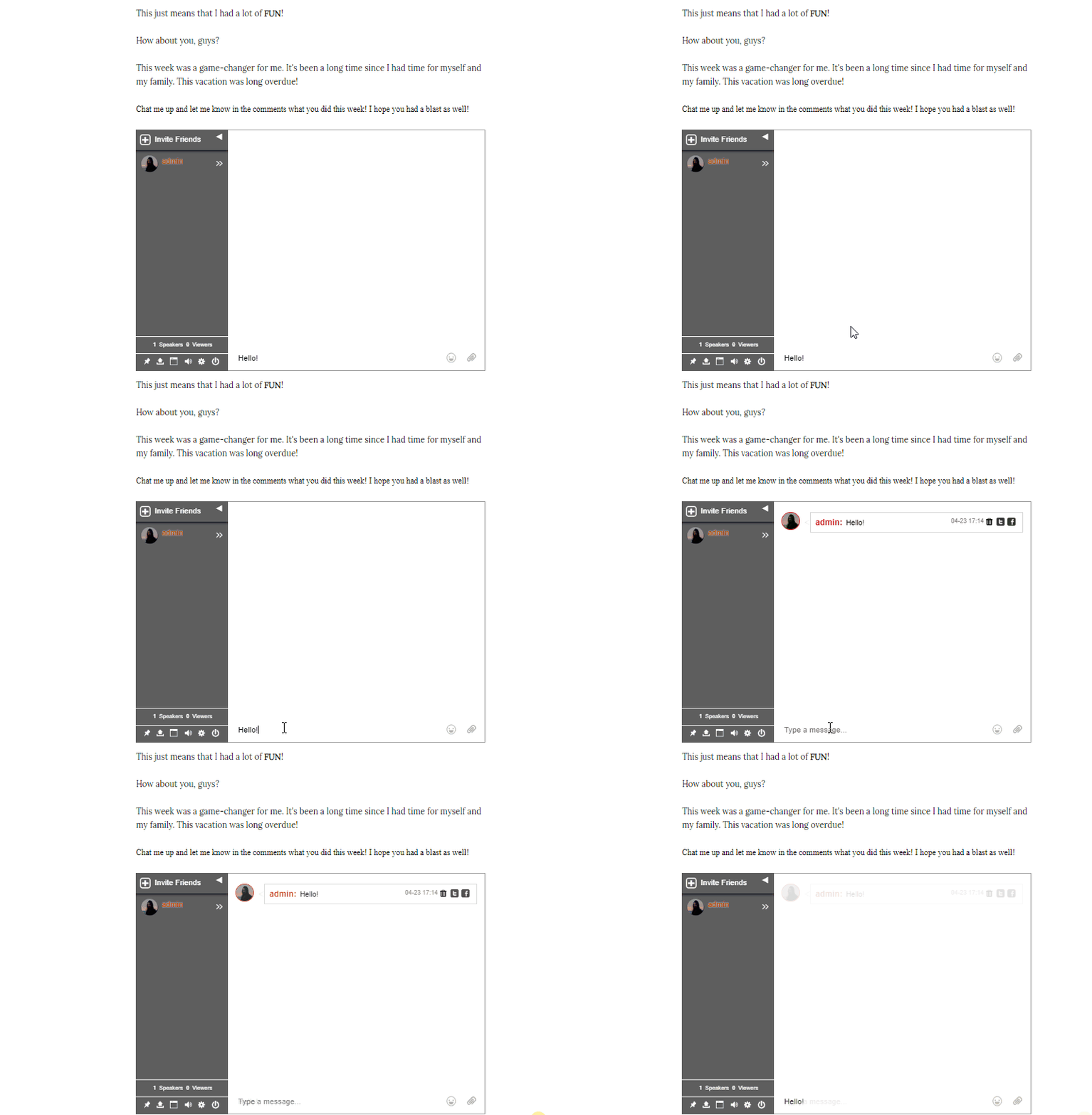
Furthermore, you can use the moderated chat to add a Q&A session on your live event just like on the GIF above.

So if you’re looking for a chat that can handle your live events, then a website chat like RumbleTalk is the way to go.

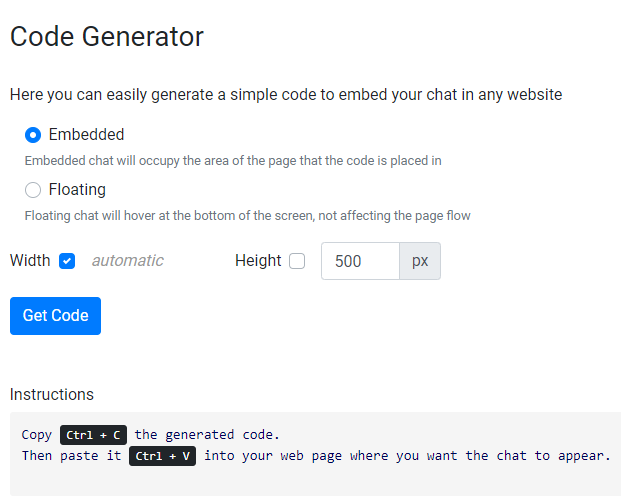
You can install the RumbleTalk chat plugin on WordPress if you’re using WordPress. Or, you can add the RumbleTalk chat on your website as an embedded or floating chat.

Increase your website engagement

When you have a website chat that’s accessible for everyone, then you can guarantee that your website engagement will hit the roof.

A group chat lets everyone discuss their thoughts on your site, your topic, your product, or whatever they want to talk about. This will lead them to be back each time you post an update or if they just want to hang out in your chat room.

It helps your audience have a sense of belonging. With that, your audience engagement is consistent. In turn, it will also increase your website traffic.

Turn your visitors into followers

Some of your audience might just be visitors who are curious about your website. That’s how it usually is at first.

You have to make a reason for them to stay. That’s where your website chat comes in. When you have a website chat, you can talk with your visitors and let them know what you’re offering.

As the website owner, you know more about the product and this builds a connection with your visitors.

If you’re not around, you can let your moderators take over or even your long-time followers. They can help you establish new leads by talking about what your website is all about.

It’s always better to talk to a human than a chatbot.

How to add a website chat

  • First, log in to your admin panel.
  • Click Embed.
  • Adjust the settings that you want for your website chat.
  • Copy the generated code and paste it on your website.
live events

After following the steps above, you will see your chat on your website!

web chat

Adding a website chat has never been this easy! You don’t need to install anything on your laptop or desktop. All you need is to copy and paste the code into your website!

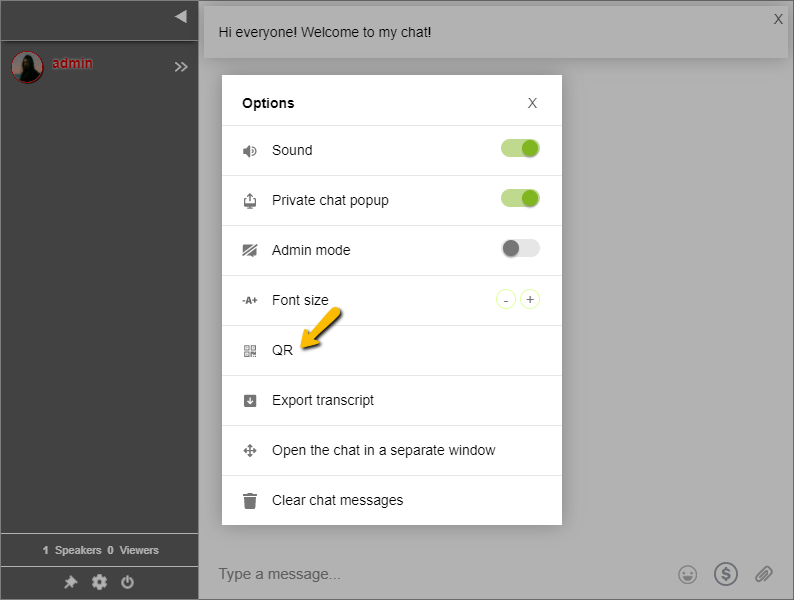
Another great advantage of using a website chat is that you can switch easily from a web browser to a mobile browser. Users just need to copy and paste the URL of your chat room or scan the QR code of your chat from their smartphones.

Connect more with a website chat

These are just some of the great ways that can help you when you use the RumbleTalk chat on your website. When you sign up, you can discover more features, hidden gems, and other chat types waiting for you!

So, what are you waiting for? Download the RumbleTalk chat plugin for WordPress or add it to your site as an embedded or floating chat.

If you need more information about the platform, check out the knowledge base, and read about the different features there. You can also see short videos that can serve as your guide.

Happy chatting!

How To Use RumbleTalk WordPress Chat Plugin

Is WordPress your choice for hosting your website? If yes, then we’ve got a WordPress chat plugin that you can use easily.

Since WordPress sites are customizable, plugins are there to help you elevate your website.

In this guide, we’re going to show you how you can download the RumbleTalk chat plugin, how to use it, what you can do with the chat.

Hey, if you’re looking at how you can integrate it into other websites or domains, go to this article.

Install the chat plugin

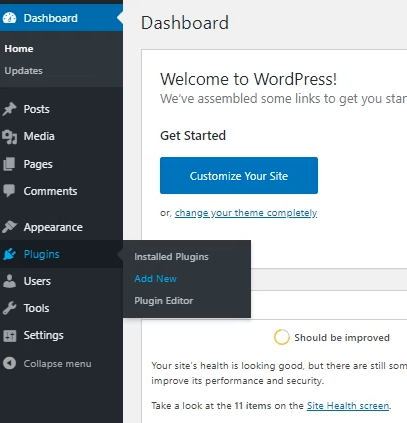
It’s easy to install the RumbleTalk chat plugin on WordPress. Firstly, log in to your WordPress dashboard.

Secondly, go to Plugins > Add New.

wordpress chat plugin

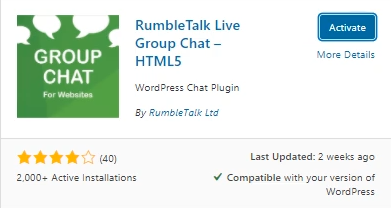
Thirdly, search for RumbleTalk in the search bar. Click Install Now.

Lastly, activate the plugin.

wordpress chat plugin

Immediately after activating the plugin, you will see RumbleTalk Chat in your WordPress settings.

Using your new WordPress chat plugin

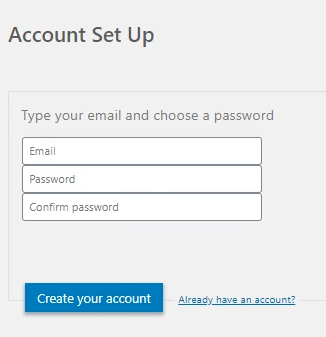
Now that’s all settled, you need to set-up RumbleTalk to use it as a chat. Therefore, you need to log-in (if you already have an account) or register (as a new user).

So, if you’re a new user, opt to create a new account.

You will need to provide the following:

  • Email
  • Password
  • Confirm password

After that, proceed to create your account.

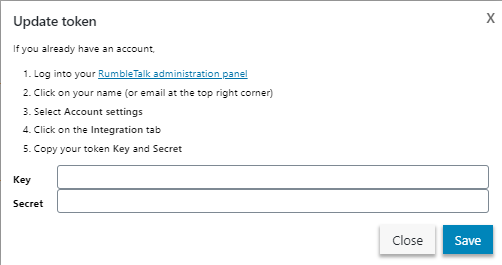
If you already have an account, click on Already have an account at the bottom right corner. It will lead you to the Update Token settings.

As said in the settings, log in to your RumbleTalk admin panel. Click the link above so you can be redirected to the page.

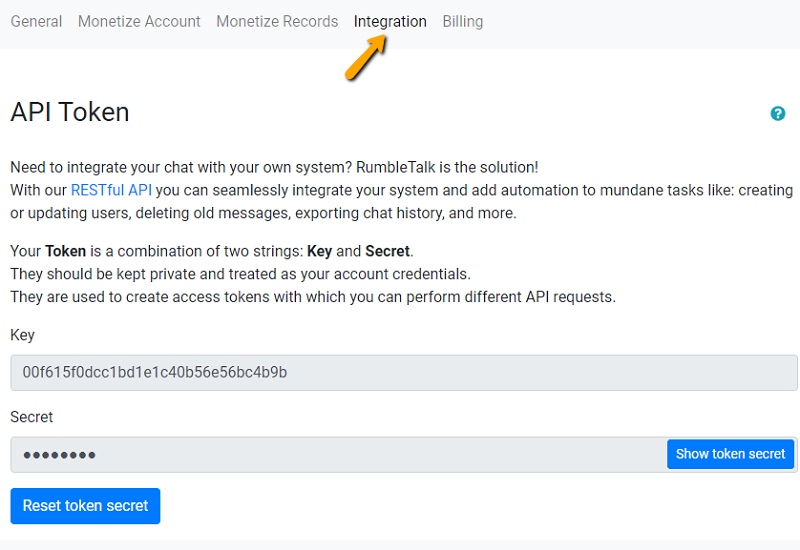
Once you’ve logged in, click your profile name (it can be your username or email), select Account Setting, and then click the Integration tab.

rest api

You will see the following: Key and Secret. These are needed for you to update your token on WordPress. Copy and paste them on your WordPress settings and save.

Once saved, your RumbleTalk chat should be seen on your WordPress site.

Features you can do with the RumbleTalk WordPress chat plugin

Create chat moderators

Since you have many chatters in one chat room, it’s good to have a helping hand when you’re not online. Or, you can also set yourself as a moderator to use all admin rights.

Here’s how you can set chat moderators with the WordPress chat plugin.

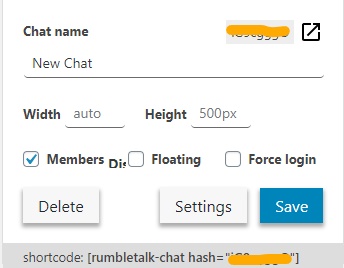
  • Go to the RumbleTalk chat plugin settings, then click on Settings.

NOTE: The chat hash is blurred because you should always keep your chat hash private.

  • Click Users.
  • Then, choose Add new user.
  • Fill out the form. Choose admin with global access or admin for specific rooms only to set a chat moderator.

NOTE: If you set a user as admin for a chat room, then this will allow other WordPress users from your database to login with the chat automatically and set passwords only for the administrators.

With these easy steps, you now have moderators, who can help you monitor your chat. Who knows, you might even use the moderated chat as your preferred chat type.

Set auto login for WordPress users

Did you know that you can set your WordPress users to be automatically logged in when they use the RumbleTalk chat plugin? When you want your users to be logged in automatically, here’s what you need to do.

  • Go to the RumbleTalk chat plugin settings, and then click Settings.
  • To activate the auto-login feature, just click the Members box as seen in the example above.

Now, when your WordPress users are logged in, they can immediately start chatting.

NOTE: If the settings are acting up, you can repeat the process again and save.

RumbleTalk WordPress chat plugin

RumbleTalk integrates with WordPress seamlessly. If you’re still confused about how it works, you can watch this short video.

All in all, RumbleTalk allows you to use all the features you see in the admin panel. Even if you’re not using it directly on a browser, you can still use it to its full capabilities.

Here are some features you can try out when you first use the chat plugin:

  • Customize your chat design.
  • Add rooms, keywords, and moderators.
  • Try out the different chat types.
  • Create a minisite.

These are just some of the features that you can try, but there is much more when you use the chat plugin.

Discover the platform by trying out our demo.

In case you’re having issues with the plugin, connect with us. We’ll gladly walk you through the process.